
Why More People Are Ditching Paper for Digital Notebooks
Learning how to make a digital notebook is easier than most people think — and the payoff is huge.
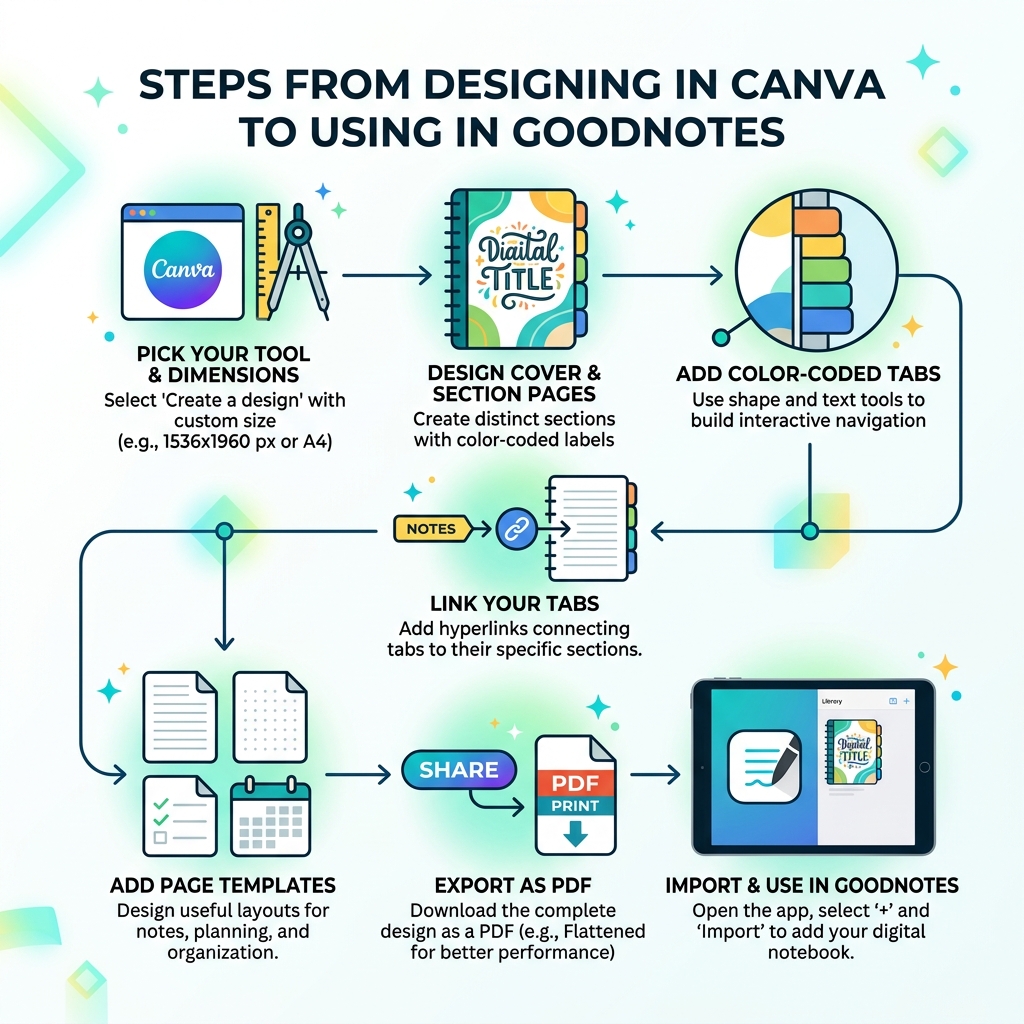
Here’s the quick version:
- Pick your tool — Canva, Google Slides, or PowerPoint (all free)
- Set your dimensions — 1536 x 1960 px works great for iPad; A4 (210mm x 297mm) for general use
- Design your cover and section pages — add color-coded tabs for navigation
- Link your tabs — use the hyperlink tool to connect tabs to their sections
- Add page templates — lined pages, dot grids, planners, calendars
- Export as PDF — then import into your favorite note-taking or PDF annotation app
- Duplicate pages inside your app for unlimited reuse
That’s the whole process. The sections below walk through each step in detail.
If you’ve ever lost an important note buried in a stack of paper, you already know the problem. Scattered notebooks, illegible handwriting, and zero search function make paper feel like a productivity trap.
Digital notebooks solve all of that. They live on your tablet or phone, sync across every device, and let you jump between sections instantly with a single tap.
The best part? You don’t need design experience or expensive software. A free Canva account — or even Google Slides — is enough to build a fully interactive notebook with clickable tabs, custom page layouts, and a polished cover.
Whether you want a daily planner, a bullet journal, a study notebook, or something you can eventually sell online, the same core process applies.
Essential Tools for How to Make a Digital Notebook
Before we dive into the creative process, we need to gather our digital “stationery.” Fortunately, most of the best tools for this project are completely free. We don’t need to be graphic designers to achieve professional results; we just need the right platforms.
To start, a Canva free account is our best friend. Canva has revolutionized how we approach digital design by offering drag-and-drop elements that used to require complex software. In fact, digital design is becoming so accessible that 87% of students in specialized design classes report that creating these notebooks exceeded their initial expectations.
If you prefer a more linear approach, Google Slides and Microsoft PowerPoint are fantastic alternatives. These programs allow us to treat each slide as a notebook page. They are particularly useful for educators or students who already live within the Google Workspace or Microsoft ecosystem. For a deeper dive into the technical side, you can check out this Guide to creating digital notebooks easily.
Beyond software, we should consider our hardware. While you can design a notebook on a laptop, the magic happens when you use it on a tablet with a stylus. The precision of a stylus allows for that classic handwriting feel while maintaining the benefits of a digital file. If you are just starting your journey, we recommend Creating a Digital Note-Taking System to ensure your hardware and software work in perfect harmony.
Choosing Your Canvas: Dimensions and Orientation
One of the most common mistakes beginners make is choosing the wrong dimensions. If the aspect ratio doesn’t match your tablet screen, you’ll end up with awkward black bars on the sides of your pages.
We generally recommend two main paths:
- iPad Optimization: For the best experience on a standard iPad or iPad Pro, use a custom size of 1536 x 1960 pixels. This fills the screen perfectly in vertical orientation.
- Standard A4: If you plan on printing your pages occasionally or want a more traditional feel, use 210mm x 297mm.
We also need to decide between vertical and horizontal layouts. Vertical is the gold standard for note-taking and reading, as it mimics a traditional spiral notebook. Horizontal layouts are better for complex planners where you want to see a full weekly spread across two “pages.”
| Feature | Vertical Layout | Horizontal Layout |
|---|---|---|
| Best For | School notes, journaling, lists | Weekly planners, project boards |
| Device Feel | Natural “book” holding | Desktop monitor or propped tablet |
| Tab Placement | Usually on the right side | Usually across the top |
| Portability | High (easy to hold one-handed) | Medium (best on a desk) |
Choosing the right setup is the first step in Creating Personalized Digital Notebooks for Work Projects that actually help you stay productive.
Step-by-Step Guide: Designing Your First Notebook
Now for the fun part: the design! We want our notebook to look so good that we actually want to use it every day.
Cover Aesthetics and Section Pages
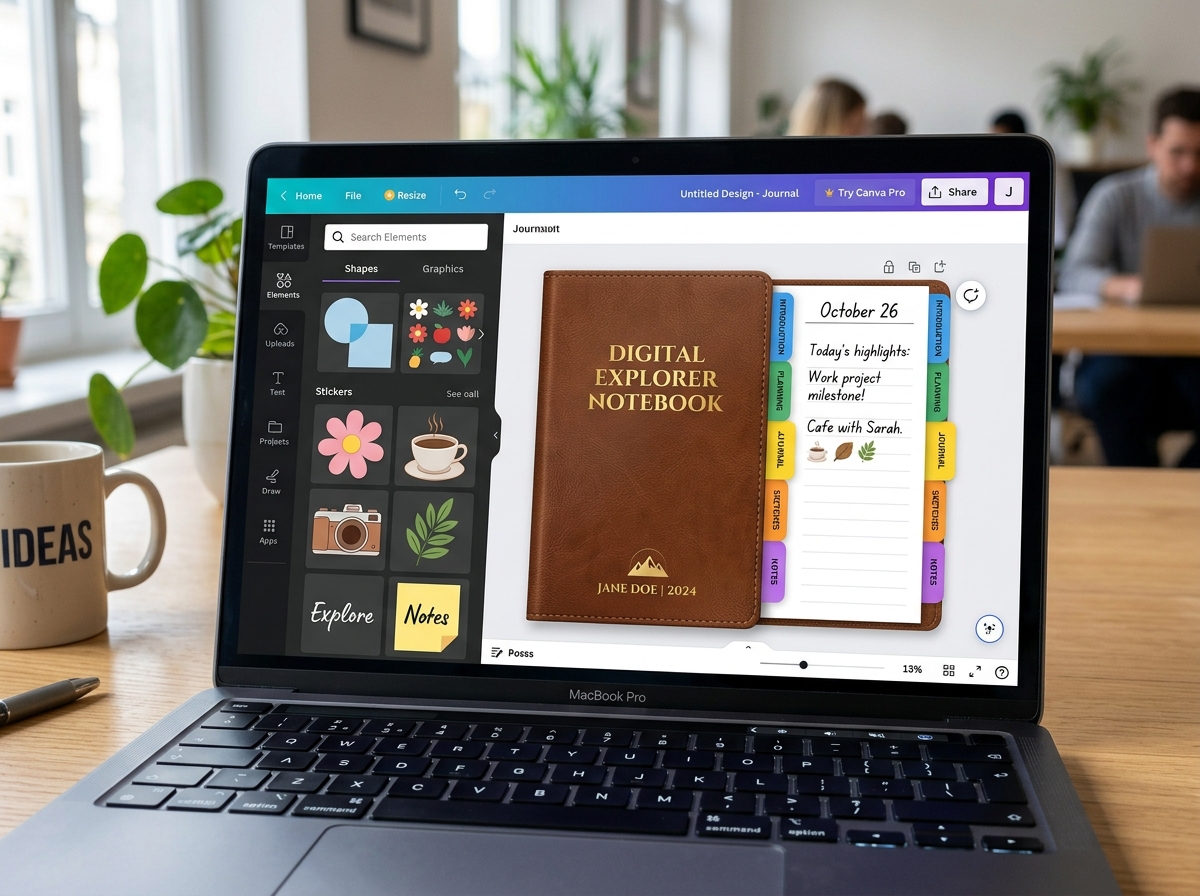
Start by designing your cover. This is the first thing you see in your app library. We suggest using a “soft touch” or “leather” texture image as a background to give it a realistic feel. You can add a text box for the title (e.g., “2024 Research Journal”) and even a “sticker” or a monogram to make it yours.
Once the cover is done, create your section title pages. These act as dividers. If you have five subjects, create five identical pages but change the title and the background color for each. Color-coding is a lifesaver; for example, make “Math” blue, “Science” green, and “Personal” pink. This visual cue helps your brain switch gears instantly. For more inspiration, explore these DIY Templates to Enhance Your Smart Notebook Experience.
Creating and Linking Interactive Tabs
This is the “secret sauce” that makes a digital notebook truly interactive. Without links, you’re just scrolling through a long PDF. With links, you have a functional app.
- Draw the Tabs: In your design tool (like Canva or Slides), use the rounded rectangle shape. Rotate it 90 degrees and place it along the right edge of your page.
- Label Them: Add a small text box on top of each rectangle with the section name (e.g., “Notes,” “Goals,” “Log”).
- Group and Position: Once you have one tab perfect, group the shape and text together. Duplicate it for each section and space them evenly.
- The Hyperlink Tool: This is the critical step. Select a tab, click the Link icon, and choose “Page in this document.” Link the “Math” tab to the “Math” section divider page.
- Consistency is Key: Once your tabs are linked on one page, copy the entire set of tabs and paste them onto every page of your notebook. This ensures that no matter where you are in the notebook, you can always jump to another section.
If you are using Google’s tools, follow this guide on How To Create A Digital Notebook In Google Slides for specific menu shortcuts. For those using smart hardware, our Smart Notebook Setup Guide for Beginners covers how to integrate these designs with physical writing.
Building Custom Page Templates for Your Digital Notebook
A notebook with only blank pages is a missed opportunity. We want to build templates that guide our thoughts.
- Lined Paper: Don’t just draw lines manually. Search for “lined paper” in Canva elements or use the “Tidy Up” tool to space horizontal lines perfectly. Remember the industry standards: College-ruled is roughly 7.1mm (9/32 inch) apart, while Wide-ruled is 8.7mm (11/32 inch).
- Dot Grids: Perfect for bullet journaling or sketching. A light gray dot grid provides structure without being distracting.
- Habit Trackers: Create a table with 31 columns for the days of the month. This is excellent for tracking water intake, exercise, or study hours.
- Calendar Layouts: A simple grid for the month allows you to see your schedule at a glance.
By Designing a DIY Bullet Journal Using Your Digital Notebook, you can combine the artistic freedom of a paper journal with the efficiency of digital tools.
Exporting and Using Your Notebook in Apps
Once your design is finished and your links are tested, it’s time to move the notebook to your tablet.
The Export Process: In Canva or PowerPoint, go to the “Share” or “Export” menu. Choose PDF Standard. Do not choose “Flatten PDF” if the option exists, as this can sometimes break the hyperlinks. We want a high-quality PDF that keeps our tab links active.
Importing to Apps: Open your preferred note-taking app. Choose “New” and then “Import.” Select your PDF file.
The Power of Duplication: One of the best things about digital notebooks is that you never run out of paper. If you reach the end of your “Notes” section, you don’t need to go back to Canva. Most apps have a “Duplicate Page” button. This creates a fresh, blank version of your template while keeping the interactive tabs perfectly in place. This is a core part of a Step-by-Step Smart Notebook Setup.
Professional Tips for High-Quality Notebooks
We’ve seen thousands of digital notebooks, and the ones that stand out always follow a few simple design principles.
First, use the Tidy Up tool. In Canva, you can select multiple elements (like your tabs) and click “Position > Tidy Up.” This ensures the spacing between your tabs is mathematically perfect. Nothing ruins the “pro” feel faster than unevenly spaced tabs.
Second, keep your color palette consistent. Use a site like Coolors.co to find a palette of 5-6 colors that work well together. Use these same colors for your tabs, headers, and section dividers.
Third, consider spacing and margins. Leave a little extra room on the side where your tabs are located so your handwriting doesn’t overlap with the navigation.
Finally, don’t overcomplicate the fonts. Use one “fun” font for titles and one clean, readable font (like Montserrat or Open Sans) for everything else. For more advanced tips, read our Step-by-Step Guide to Setting Up Your Smart Notebook.
Frequently Asked Questions about Digital Notebooks
Can I sell the digital notebooks I create?
Yes, absolutely! The market for digital planners and notebooks on Etsy is massive. Many creators earn passive income by designing beautiful templates once and selling them thousands of times. Just ensure you are using elements with a commercial license (Canva’s Pro elements usually fall under this, but always check the current terms).
What is the best app to use with a digital notebook?
While it comes down to personal preference, several leading PDF annotation apps are excellent for hyperlinked notebooks. Look for an app with a dedicated “Read Only” or “Navigation” mode, which makes navigating between sections via tabs much smoother. Some apps also feature audio recording for lectures or meetings, while others excel at OCR (Optical Character Recognition), allowing you to search your handwritten notes across all your devices.
How do I make a digital notebook for free?
You can do the entire process without spending a dime. Use the Canva Free version for design, Google Slides for layout and linking, and free PDF annotation tools available on your tablet’s app store for using the notebook. You don’t need premium software to get a premium result.
Conclusion
Mastering how to make a digital notebook is more than just a fun DIY project; it’s a gateway to a more organized, creative, and clutter-free life. By combining your personal style with the interactive power of digital links, you create a tool that evolves with you.
At Open Diode, we believe the future of productivity lies in the intersection of traditional handwriting and modern technology. Whether you are using a fully digital setup or a cloud-connected smart notebook to bridge the gap, the goal remains the same: capturing your best ideas effortlessly.
Ready to take your organization to the next level? Explore our latest tools and Start your digital journey with Open Diode today. Happy note-taking!
