
The Fastest Ways to Cloud Upload Handwritten Notes
Cloud upload handwritten notes by following one of these proven paths:
- Smart notebook + app scan – Write in a reusable notebook (like Rocketbook), scan with the companion app, and send directly to Google Drive, OneDrive, Dropbox, or Evernote automatically.
- Digital writing devices – Use a cloud-compatible device with built-in sync to push notes to your cloud storage folder automatically after each session.
- Phone camera + OCR app – Photograph your paper notes, run them through an OCR tool (like Evernote’s AI Transcribe or Google Lens), and save the extracted text to your cloud service.
- Automated AI workflow – Set up a tool like n8n or Pipedream to watch a cloud folder, process new files with an AI vision model, and save searchable text automatically.
Picture this: you fill three pages of notes in a meeting. Important stuff. By Friday, you can’t find the notebook. Sound familiar?
Paper notes fade, get lost, and are nearly impossible to search. You can’t grep a napkin. You can’t share a crumpled index card with a colleague in another city.
That gap between the comfort of writing by hand and the practicality of digital search is exactly why so many people are looking for a better way to get their handwritten notes into the cloud.
The good news? The barrier is lower than ever. Whether you want a simple one-tap scan or a fully automated pipeline that converts your handwriting to searchable text while you sleep, there’s a path that fits your setup and budget.
This guide walks you through every option – from dead-simple free tools to powerful automation workflows – so you can pick what works and stop losing your best ideas to a pile of paper.
Why You Should Digitize Your Handwritten Notes
We’ve all been there—frantically flipping through a stack of legal pads trying to find that one brilliant idea from a meeting three months ago. When you cloud upload handwritten notes, you aren’t just making a backup; you’re upgrading your brain’s filing system.
The primary benefit is searchability. Traditional paper is a “dark data” silo. Once you digitize and run Optical Character Recognition (OCR) on your notes, they become searchable. You can type “Project X” into your computer and find every mention of it across years of journals. This is a game-changer for Effective Ways to Digitize Your Journaling, allowing you to track personal growth or recurring themes over time.
Then there is the matter of disaster recovery. Paper is fragile. It’s susceptible to coffee spills, fire, or simply being left on a bus. By establishing a Cloud Backup for Smart Notebooks, you ensure that your intellectual property is mirrored in a secure, encrypted environment.
Furthermore, digital notes offer:
- Accessibility: View your meeting notes on your phone while you’re in line at the grocery store.
- Collaboration: Instead of photocopying a page, you can instantly share a link to a digitized PDF or text file with your team.
- Organization: You can tag, categorize, and move digital files into folders without the bulk of physical binders.
- Long-term Preservation: Ink on paper eventually fades. A high-resolution scan in the cloud stays crisp forever.
Essential Tools for an Automated Workflow
To build a truly “headache-free” system, you need the right gear. We believe the best setup is one where you don’t have to think about the technology while you’re actually writing.
1. Smart Notebooks
The foundation of any good workflow is the hardware. We specialize in Best Cloud Sync Smart Notebooks like the Rocketbook Fusion. These notebooks use synthetic polyester pages that allow you to write with a Pilot FriXion pen and wipe the page clean with a damp cloth. The magic happens with the app, which uses “symbols” at the bottom of the page to tell the cloud exactly where to send your scan.
2. OCR Technology
OCR (Optical Character Recognition) is the engine that reads your “chicken scratch” and turns it into digital text. Modern OCR, especially those powered by AI, can handle surprisingly messy handwriting. Tools like Evernote’s scanner or dedicated AI models are now standard for this task.
3. Automation Platforms
If you want a “pro” setup, you’ll use automation platforms like n8n (an open-source alternative to Zapier) or Pipedream. These tools act as the glue. They can “watch” a folder in your Google Drive, detect when a new handwritten note is uploaded, send it to an AI for transcription, and then post the text into your note-taking app like Notion or Capacities.
4. AI Transcription Models
Traditional OCR often struggles with formatting. New Large Language Models (LLMs) with vision capabilities—like GPT-4o or Google Gemini 1.5 Pro—are significantly more accurate. They don’t just read the words; they understand the context, allowing them to extract action items or format your notes into clean Markdown.
Step-by-Step Guide to Cloud Upload Handwritten Notes
Setting up your workflow doesn’t have to be a technical nightmare. We recommend a “crawl, walk, run” approach. Start with basic app scanning, then move toward full automation.
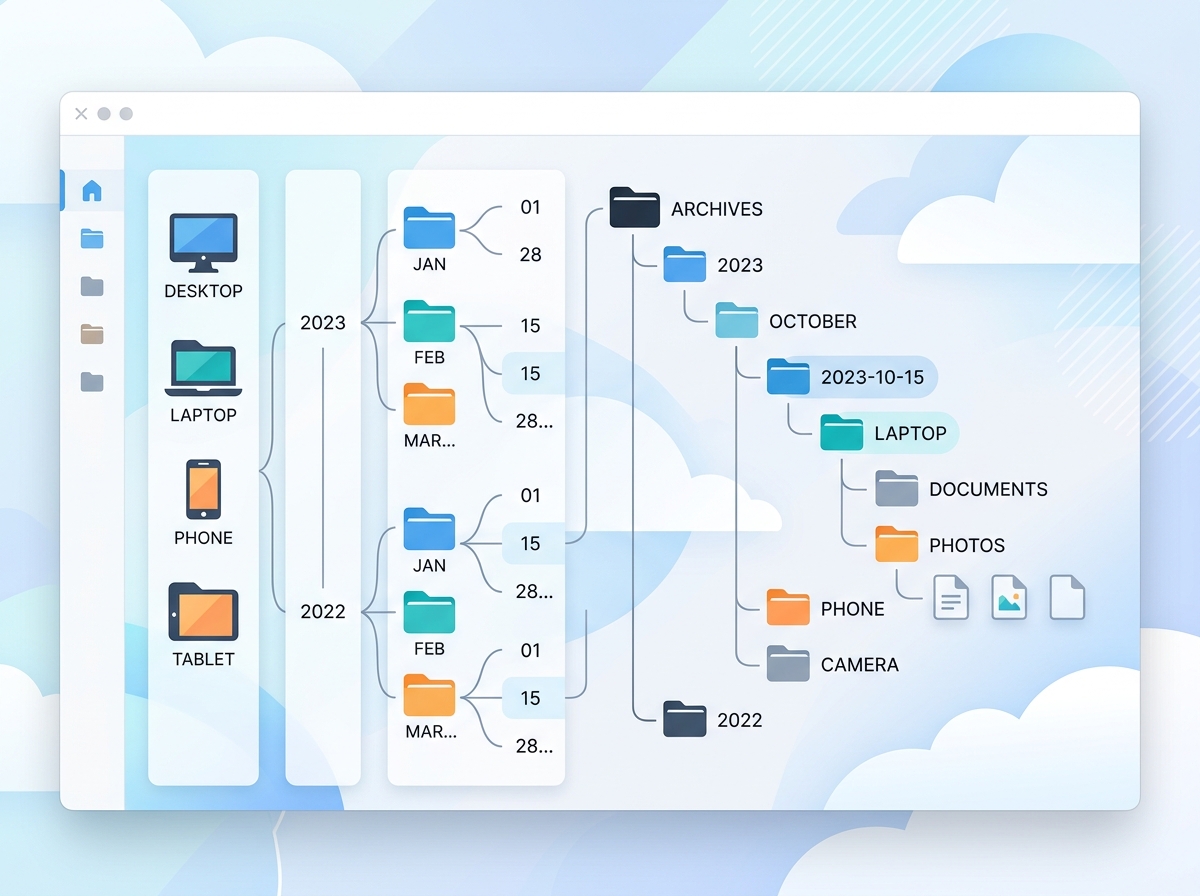
Capture Methods: Manual vs. Automated
The way you get the image into the cloud dictates how much work you have to do later.
| Feature | Manual App Scanning | Automated Cloud Syncing |
|---|---|---|
| Speed | 10-20 seconds per page | Instant (Background) |
| Effort | Requires opening an app | Set it and forget it |
| Cost | Usually free/low cost | May require specialized hardware |
| Best For | Occasional note-takers | Daily journalers & pros |
When you Syncing Your Smart Notebook with Popular Apps, you create a bridge. For example, with a Rocketbook, you mark a “Diamond” symbol at the bottom of the page. When you scan, the app knows that “Diamond” means “Send to the ‘Work Projects’ folder in Dropbox.”
Setting Up Your Device for Cloud Upload Handwritten Notes
The “headache” usually comes from unreliable syncing. Here is how we recommend configuring your cloud destinations for maximum reliability:
- Folder Mapping: Create a dedicated “Inbox” folder in your cloud service (Google Drive or OneDrive). All raw scans should land here first.
- OneDrive vs. Google Drive: In our testing, OneDrive often provides a “rock-solid” experience for background syncing on Windows and digital writing devices, whereas Google Drive can occasionally experience sync delays on certain third-party hardware.
- Auto-Send Features: If you use a compatible smartpen, enable the “Auto-Send” feature. This ensures that every time your pen connects to your device, it pushes new strokes to the cloud without you clicking a single button.
- Background Syncing: For digital writing tablets, ensure “Background Sync” is enabled in the settings. This allows the device to cloud upload handwritten notes even when the screen is off.
Choosing the Right AI for Cloud Upload Handwritten Notes
Once the image is in the cloud, how do you make it searchable? This is where AI vision models shine.
- OpenAI GPT-4o: This is currently one of the most cost-effective and accurate models. It costs approximately $0.0038 to $0.0055 per image for high-resolution vision processing. It is excellent at following complex prompts like “Convert this to a bulleted list and extract all dates.”
- Google Gemini 1.5 Pro: Many users find Gemini to be more reliable for high-volume PDF transcription, especially when dealing with multi-page documents.
- Cost Analysis: If you use a tool like Pipedream, you might pay around $0.005 to $0.02 per page to digitize your notes. For a heavy note-taker (100 pages a month), that’s only about $2.00—a small price for a searchable brain.
Managing Accuracy and Privacy in the Cloud
We need to address the elephant in the room: AI isn’t perfect, and the cloud isn’t a private vault unless you configure it correctly.
Handwriting Clarity
AI is smart, but it can’t perform miracles. If your handwriting looks like a seismograph during an earthquake, the accuracy will drop. To improve results:
- Use a darker pen (like the Pilot FriXion 0.7mm).
- Write in a structured format (like the Cornell Method or simple outlines) rather than sprawling mind maps.
- Ensure good lighting when scanning with a phone camera to avoid shadows that confuse OCR engines.
Privacy and Data Retention
When you cloud upload handwritten notes and send them to an AI for transcription, your data is being processed by a third party.
- OpenAI API: Data sent via the API is not used to train their models (unlike the consumer ChatGPT app), and it is typically deleted after 30 days.
- Local Processing: If you are extremely privacy-conscious, you can look into running local OCR models like Tesseract, though these are significantly less accurate for handwriting than cloud-based AI.
- Encryption: Always ensure your cloud provider (Dropbox, Google, etc.) has Two-Factor Authentication (2FA) enabled. Your notes are your private thoughts; protect them like your bank account.
Frequently Asked Questions about Note Digitization
Are there free alternatives for digitizing notes if automation is too complex?
Yes! You don’t need a custom Docker setup to get started.
- Google Keep: You can Upload Image to Evernote Notes or use Google Keep’s “Grab Image Text” feature. It’s a manual process but completely free.
- Microsoft OneNote: OneNote has built-in OCR. Simply right-click an image of your notes and select “Copy Text from Picture.”
- Smartphone Apps: Apps like Adobe Scan or Microsoft Lens provide high-quality PDF “flattening” and basic OCR for free.
How do I handle multi-page PDF uploads for transcription?
Most AI vision APIs process images (PNG/JPG) better than raw PDFs.
- PDF Splitting: Use a tool like PDF.co or a simple Python script to split a 10-page PDF into 10 separate images.
- Batch Processing: Automation tools like Pipedream can loop through these images, transcribe each one, and then reassemble the text into a single Notion page or Markdown file. A PDF.co credit pack (around $17.50) can cover over 1,400 pages of conversion.
What are the costs associated with AI transcription APIs?
If you are building a DIY workflow:
- OpenAI: You’ll need a $5 minimum prepaid credit to access the GPT-4o API.
- Automation Platform: Pipedream has a generous free tier (10 credits/day), but a paid plan is needed for high-volume users.
- Storage: Most people stay within the free tiers of Google Drive or OneDrive (15GB and 5GB respectively), which can hold thousands of note scans.
Conclusion
At Open Diode, we believe that the best technology is the kind that disappears. You should be able to enjoy the tactile feel of pen hitting paper without worrying about where that information will live tomorrow.
By setting up a system to cloud upload handwritten notes, you bridge the gap between the 19th-century joy of writing and 21st-century efficiency. Whether you choose a simple reusable notebook or a complex AI-driven automation, the goal is the same: making your thoughts searchable, shareable, and safe.
Ready to start your digital transformation? Explore our Best Cloud Sync Smart Notebooks and take the first step toward a headache-free note-taking life. Happy writing!
