
The Best Smart Notebook Android Apps to Download Right Now
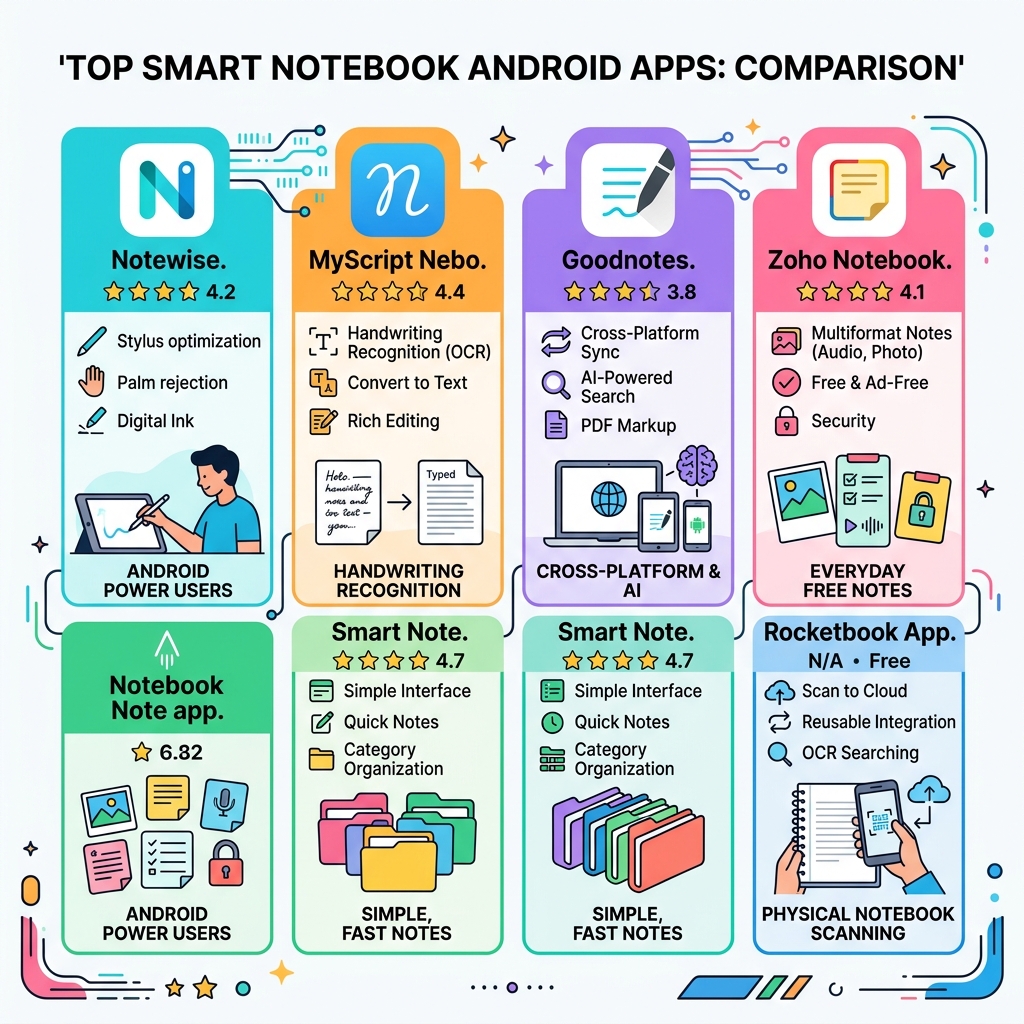
Smart notebook Android apps let you capture, organize, and sync your notes digitally — whether you’re writing by hand on a tablet or scanning pages from a physical notebook.
Here are the top categories worth exploring:
| App Type | Best For | Key Benefit |
|---|---|---|
| Rocketbook App | Physical notebook scanning | Instant cloud syncing |
| Digital Handwriting | Stylus & Tablet users | Natural writing feel |
| AI-Powered Notes | Search & Summarization | Searchable handwriting |
| Multimedia Apps | Students & Professionals | Audio & photo integration |
Paper notes pile up. They get lost, damaged, or just buried under a stack of other notebooks. And when you need that one thing you wrote three weeks ago — good luck finding it.
That’s the problem smart notebook Android apps solve.
Whether you want to write directly on your Android tablet with a stylus, scan handwritten pages into the cloud, or use AI to search and summarize your notes, there’s an app built for your workflow.
Some apps focus on pure digital handwriting with low-latency stylus input and palm rejection. Others bridge the gap between physical paper and digital storage — like Rocketbook, which lets you scan reusable notebook pages and send them straight to Google Drive, Dropbox, or other cloud services.
The challenge? Not every app is created equal. Ratings range from 1.3 stars all the way to 4.7, and free tiers often come with real limitations.
This guide breaks down the best options so you can find the right fit — fast.
Defining the Smart Notebook Android App Experience
What exactly makes an app “smart”? Unlike a basic notepad app where you just type text, a smart notebook android app is designed to handle the nuances of handwriting and the complexities of modern organization. These apps act as a digital bridge, often utilizing Optical Character Recognition (OCR) to turn your scribbles into searchable text.
The experience is defined by several core pillars:
- Digital Capture: Whether you are using a stylus on a Samsung Galaxy Tab or scanning a physical page from a reusable notebook, the goal is high-fidelity digital reproduction.
- Cloud Synchronization: Your notes shouldn’t live on just one device. Leading apps sync your data to the cloud, making it accessible on your phone, tablet, and laptop.
- Multimedia Integration: You aren’t limited to just words. You can embed audio recordings, photos, and web clips directly into your pages.
- PDF Annotation: Most smart apps allow you to import a PDF, sign it, highlight it, and export it back out.
For a deeper dive into what these tools can do, check out this review of smart notebook apps features and functionalities.
Traditional vs. Smart Apps: The Evolution
Traditional note apps are often “linear” — you type from top to bottom. Smart notebook apps offer a “freeform” canvas. You can draw a diagram in the middle, write a margin note on the left, and snap a photo on the right.
| Feature | Traditional Note App | Smart Notebook App |
|---|---|---|
| Input Method | Primarily Keyboard | Stylus, Handwriting, Scanning |
| Searchability | Typed text only | Handwritten text via OCR |
| Organization | Folders/Tags | Nested Notebooks, AR tagging |
| Flexibility | Fixed Layout | Infinite Canvas / Responsive Docs |
If you’re feeling overwhelmed by the choices, our guide to smart notebook apps comparison can help you narrow down the field based on your specific device.
Top Features to Look for in a Smart Notebook Android App
When you’re browsing the Google Play Store, it’s easy to get distracted by flashy icons. However, for a productive workflow, you need to look under the hood.

Stylus Support and Writing Feel
If you’re using a tablet, the writing experience is everything. You want an app that offers low-latency writing (no “lag” between the pen tip and the digital ink) and robust palm rejection. This ensures the app doesn’t mistake your hand resting on the screen for a stray pen stroke. High-quality digital handwriting apps excel here, providing a feel that mimics pen-on-paper.
Organization and Search
A smart app is only as good as its filing system. Look for features like:
- Infinite Canvas: Great for brainstorming and mind-mapping without running out of room.
- Dark Mode: Easier on the eyes during late-night study sessions.
- Folder Organization: The ability to create unlimited nested folders and tags.
- Cross-platform Sync: Ensuring your Android tablet notes show up on your Windows PC or web browser.
Privacy and Data Encryption
Your notes often contain sensitive information. Leading privacy-first apps pride themselves on an approach offering encrypted notes and an “offline-first” model. Always check if the developer shares data with third parties. Many top-rated apps now allow you to request data deletion and use encryption in transit. For more on how to set these up, see the ultimate guide to smart notebook integration.
Handwriting Recognition in a Smart Notebook Android App
This is the “killer feature” for many. Advanced AI-powered note apps are industry leaders here, supporting dozens of languages. They don’t just turn handwriting into text; they understand the structure of what you’re writing. They can refine hand-drawn shapes into perfect circles or squares and even solve math equations written by hand. This makes your handwriting searchable, meaning you can find that one specific meeting note just by typing a keyword into the search bar.
Optimizing Your Workflow with a Smart Notebook Android App
For students and professionals, these apps are more than just paper replacements; they are productivity hubs.
- Real-time Collaboration: Share a link with a classmate or colleague to work on the same notebook simultaneously.
- Audio Recording: Record a lecture or meeting while you take notes. Some apps can even sync the audio to the specific stroke of the pen.
- Google Calendar Sync: Some apps attempt to sync your handwritten schedules directly to your digital calendar.
- Template Variety: From Cornell notes for students to Kanban boards for project managers, templates save you from staring at a blank page.
To see how to stack these tools for maximum efficiency, read about the top must-have apps to enhance smart notebooks.
Bridging Physical and Digital with Scanning Apps
Not everyone wants to give up the feel of a real pen and physical paper. This is where scanning-based smart notebook android apps shine.
Apps like Rocketbook use your phone’s camera to “digitize” handwritten pages. The app doesn’t just take a photo; it crops, rotates, and enhances the image so it looks like a high-quality scan.
How It Works: The Reusability Loop
- Write: Use a compatible pen (like the Pilot FriXion) on specialized synthetic paper.
- Scan: Use the app to capture the page. Some apps use “Object Awareness” to automatically detect the notebook’s borders.
- Sync: The app sends the scan to a pre-configured “Cloud Destination” like Google Drive, Evernote, or Slack based on symbols you mark at the bottom of the page.
- Erase: Wipe the page clean with a damp cloth and start over.
This “reusability” is an environmental win, potentially saving thousands of sheets of paper over a lifetime. It’s a seamless way of syncing smart notebooks with apps without needing an expensive tablet.
Frequently Asked Questions about Smart Notebook Apps
What are the system requirements for these apps?
Most high-end note-taking apps recommend an Android tablet with at least 4GB of RAM and a relatively recent version of Android for the best experience. While they can run on phones, the “large screen” optimization is what often earns top apps awards on Google Play.
How do user ratings compare?
Ratings can be telling. Top-tier productivity apps often lead with high star ratings, praised for being fast and reliable. Some apps hold varying ratings based on how their Android version compares to other platforms. Be wary of apps with very low ratings, as users frequently report issues with registration and verification codes.
What is the difference between free and premium smart notebook apps?
Most apps follow a “freemium” model.
- Free Versions: Often limit you to 3 notebooks, have a 5MB limit on PDF imports, or include watermarks on exported files. Some are 100% free but supported by ads.
- Premium Subscriptions: Unlock unlimited notebooks, advanced AI features (like summarizing or “chatting” with your notes), and full cross-platform sync. Some rare gems remain largely ad-free and feature-rich without a heavy cost.
How do I ensure my handwritten notes are searchable?
To make notes searchable, the app must perform OCR (Optical Character Recognition). Once the app indexes your handwriting, you can use the global search bar to find specific words. For the best results, try to write as clearly as possible and ensure the app supports your primary language.
Which smart notebook app features are beneficial for educators?
Educators using interactive classroom technology like interactive whiteboards often look for apps that support digital ink and interactive tools. While specialized classroom software is a desktop powerhouse for Windows and Mac, versatile Android apps allow teachers to move around the room with a tablet, annotating presentations that are mirrored to the big screen.
Conclusion
The “perfect” smart notebook android app depends entirely on your hardware and your habits. If you have a high-end tablet and a stylus, a dedicated digital ink app will give you the most powerful experience. If you prefer the tactile feel of paper but want the organization of the cloud, the Rocketbook App paired with a reusable notebook is the way to go.
At Open Diode, we believe in the power of the digital transformation. By moving your handwritten thoughts into the cloud, you’re not just saving paper — you’re making your ideas accessible, searchable, and permanent. Whether you’re a student mastering math or a professional organizing a global team, there is a smart solution waiting for you in the Play Store.
Ready to upgrade your note-taking game? Visit Open Diode to explore the latest in cloud-connected stationery and start your journey toward a more organized life.
