
Why Handwriting to Text Conversion Is a Game-Changer for Modern Note-Takers
Handwriting to text conversion is the process of turning handwritten notes, documents, or images into editable digital text using software.
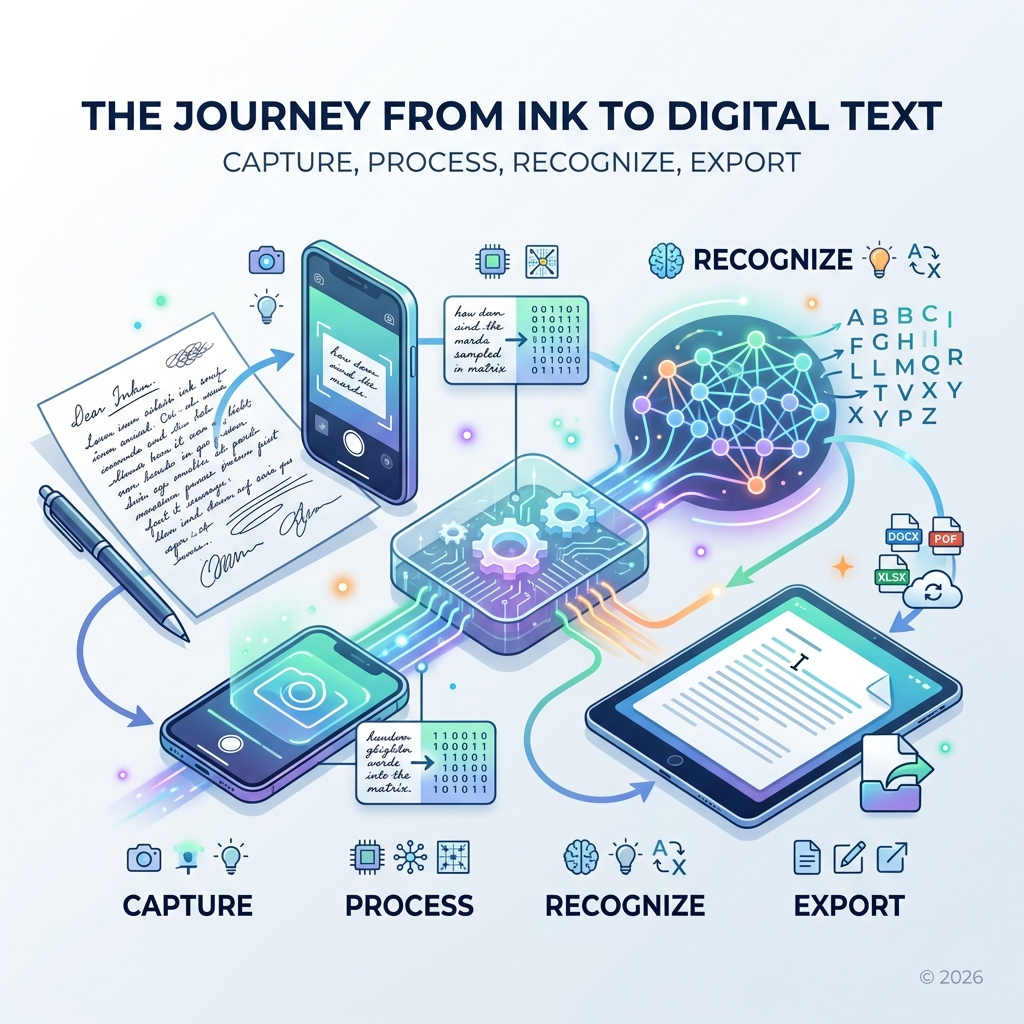
Here’s how it works in a nutshell:
- Capture – Take a photo or scan your handwritten page
- Process – AI-powered software analyzes the image and recognizes letters, words, and structure
- Output – Receive editable digital text you can copy, search, edit, or export
- Export – Save as Word, PDF, Excel, or other formats for use anywhere
Most modern tools support printed and cursive handwriting, multiple languages, and a range of file formats including JPEG, PNG, and PDF.
Think about how much time you spend retyping your own notes. Lecture scribbles, meeting memos, project ideas on sticky notes — all of it locked in paper form, unsearchable and easy to lose.
That frustration is exactly why handwriting to text conversion has become one of the most practical tools for students, professionals, and anyone trying to go paperless.
The good news? The technology has come a long way. Modern AI-powered tools can now read messy and cursive handwriting with impressive accuracy — some claiming over 95% word accuracy even on difficult scripts. One user put it simply: they couldn’t even read their own writing, but the software got it right on the first try.
In this guide, you’ll learn how the technology works, which tools and workflows perform best, and how to get the most accurate results from your handwritten documents.
Understanding the Technology Behind Handwriting to Text Conversion
To understand how our scribbles turn into digital characters, we need to look under the hood. For a long time, the world relied on Optical Character Recognition (OCR). This technology is fantastic for printed text because printed letters are uniform. However, as anyone who has tried to read a doctor’s prescription knows, human handwriting is anything but uniform.
This is where Handwritten Text Recognition (HTR) comes in. Unlike standard OCR, HTR uses deep learning and neural networks. These AI models are trained on millions of samples of actual human writing. Instead of just looking at a static shape, the technology analyzes the flow, the connection between letters, and the overall pattern of the script.
Modern systems perform complex layout analysis. They don’t just see a wall of text; they identify text regions, detect lines, and even recognize character-level details in connected cursive. They also use language models to provide context. If a word looks like “ap-le,” the AI knows it’s likely “apple” because of the surrounding vocabulary.
One of the most exciting developments is the Recognize your users’ handwriting | Web Platform | Chrome for Developers API. This allows for “on-line” recognition, which happens in near real-time as you write. It captures the temporal sequence of your strokes—the speed and pressure—making it even more accurate than “off-line” methods that only analyze a finished image.
The Evolution of Handwriting to Text Conversion Accuracy
We’ve moved past the days of “hit or miss” results. Today, industry leaders boast a 98.2% word accuracy rate. This evolution is driven by machine learning models that have “seen” it all: from tight, slanted cursive to messy, hurried block letters.
The technology can now handle:
- Cursive and Script: Connected letters that used to baffle older scanners.
- Messy Writing: AI models are now so advanced they can often decipher notes that the original author struggles to read.
- Historical Scripts: Specialized models can even read 19th-century scripts like Kurrent or Fraktur, which is a massive win for researchers and genealogists.
With over 200 million pages processed globally by various AI models, the “training data” available to these systems is vast, allowing them to understand the infinite variations in human script.
Technical Limitations and Error Handling
Even with 98% accuracy, we aren’t at perfection yet. The biggest hurdle is usually image quality. If a photo is blurry, poorly lit, or low-resolution, the AI has a harder time “seeing” the strokes. Faded documents or paper with heavy smudges can also throw off the recognition engine.
Another limitation is formatting preservation. While many tools are getting better at maintaining the “look” of a document, some basic OCR tools only provide a “flat” plain text output. This means your carefully constructed tables or side-margin doodles might get lost in the shuffle or turned into a jumbled string of words. Unwanted line breaks are another common quirk; the software might think a new line in your notebook should be a new paragraph in your Word doc, even if it’s the middle of a sentence.
Best Practices for High-Accuracy Digitization
If you want your handwriting to text conversion to be flawless, a little preparation goes a long way. Think of the AI as a student trying to read your notes—the clearer you make it, the better the grade.
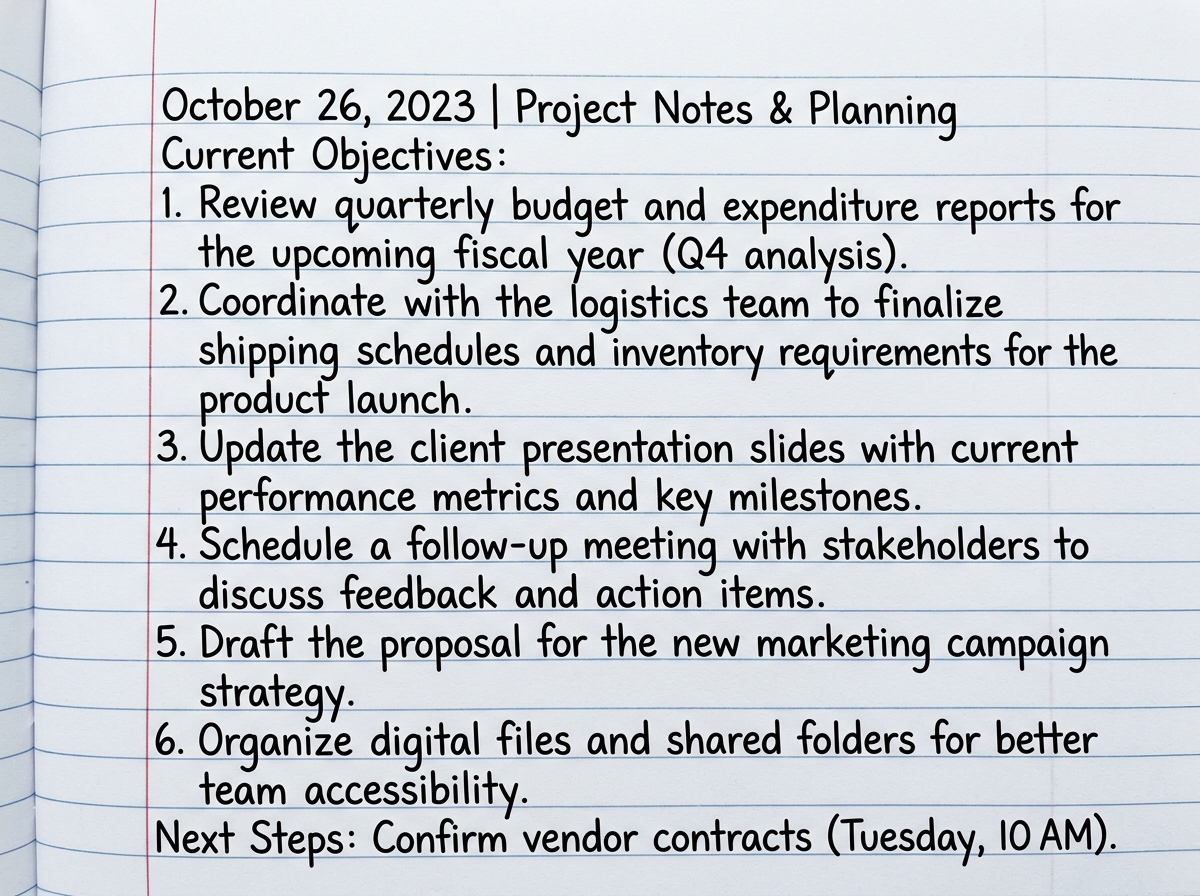
- Use Lined Paper: This keeps your sentences straight. Slanted lines are much harder for layout analysis tools to process correctly.
- Lighting is Key: Shadows are the enemy of OCR. Ensure your page is evenly lit, preferably with natural light or a bright overhead lamp, to avoid “dark spots” that the AI might mistake for ink.
- Write in Capital Letters: If you are taking notes that must be 100% accurate (like a list of serial numbers or complex codes), using block capitals significantly boosts recognition rates.
- Prevent Smudging: Use a pen that doesn’t bleed or smudge. A clean, high-contrast line (black ink on white paper) is the gold standard.
OCR Accuracy Comparison
| Writing Style | Typical Accuracy | Best Use Case |
|---|---|---|
| Neat Block Capitals | 99% + | Forms, Codes, Data Entry |
| Standard Print | 95-98% | General Note-taking |
| Clear Cursive | 90-95% | Letters, Journaling |
| Messy/Fast Script | 85-90% | Rapid Brainstorming |
Optimizing Your Handwriting to Text Conversion Workflow
To make the process seamless, we recommend using dedicated scanning apps rather than just your phone’s default camera app. These apps often include “auto-cropping” and “perspective correction,” which flatten the image and remove the background (like the table your notebook is sitting on).
When scanning, keep your camera stable. Small shakes result in “ghosting” that confuses the AI. Most professional tools work best with a maximum file dimension of around 9000 pixels; anything larger might be overkill and slow down the processing time, while anything smaller than 1000 pixels might lose vital detail.
Improving Results with Post-Processing Tools
Sometimes the digital output needs a little “polish.” If your converted text has those pesky extra line breaks we mentioned earlier, you don’t have to delete them manually. There are specific browser extensions and AI tools designed to “clean up” text formatting.
You can also use AI editing tools to summarize your notes or fix minor grammar errors that occurred during the conversion. For those looking to integrate this into a professional routine, learning how to set up your smart notebook for maximum efficiency is a great way to ensure your notes are organized from the moment the pen hits the paper.
Specialized Solutions for Complex Documents
Not all handwriting is just sentences. Sometimes we are dealing with structured data that requires a bit more “intelligence” from the software.
- Math and Science: Specialized “Math Converters” can recognize equations and formulas, turning them into editable LaTeX or Word Math objects. This is a lifesaver for STEM students.
- Tables and Forms: Some AI digitizers are built to recognize document hierarchy. They can detect a hand-drawn table and recreate it in Excel, keeping the rows and columns perfectly aligned.
- Searchable PDFs: For archiving, the best approach is often creating a “Searchable PDF.” This keeps the image of your original handwriting on top but places a hidden layer of machine-readable text underneath. This way, you keep the “soul” of the handwritten letter but can still use “Ctrl+F” to find a specific word.
Handling Multiple Languages and Scripts
The digital world is global, and so is handwriting recognition. Modern platforms support over 100 languages, including complex scripts like Cyrillic, Arabic, and various Asian writing systems. Some tools even offer multi-lingual detection, meaning they can recognize if you’ve switched from English to Spanish mid-paragraph and adjust their language models accordingly.
Industry-Specific Use Cases
We see handwriting to text conversion making waves in several sectors:
- Education: Teachers can snap pictures of student assignments for effortless grading and digital record-keeping.
- Genealogy: Families are digitizing “chaotic” recipe collections or old letters from the 1800s to preserve their history for generations.
- Logistics: Delivery notes and handwritten invoices are being converted to Excel to save hours of manual data entry.
- Medical: While doctor’s handwriting is a cliché, HTR is helping digitize old patient records that were previously “dark data.”
Integrating Smart Notebooks and Cloud Ecosystems
While you can scan any piece of paper, the “pro” way to handle this is through a smart notebook system. At OpenDiode, we focus on products like the Rocketbook Fusion, which bridge the gap between analog and digital.
The magic happens when the paper and the app work together. For instance, a step-by-step smart notebook setup allows you to designate “destinations” for your notes. By marking a small icon at the bottom of the page, you can tell the app to send your transcribed text directly to Google Drive, Email, or Evernote.
These systems often include features like:
- Smart Titles: Write a title between two hashtags (e.g., ##Meeting Notes##), and the app will automatically name the digital file for you.
- Smart Tags: Categorize your notes as “Math” or “Project X” automatically during the scan.
- Real-Time Syncing: No more losing your notebook; your thoughts are backed up to the cloud the moment you finish a page.
For more on this, check out our guide on syncing your smart notebook with popular apps to see how you can build a truly paperless workflow.
Privacy, Security, and File Management
When you upload your handwritten thoughts to the cloud, security is a valid concern. You aren’t just uploading data; you’re uploading your personal script and ideas.
Most professional services use bank-grade encryption (SSL) for data in transit and at rest. If you are in Europe or dealing with European clients, look for GDPR-compliant services. A key feature to look for is “Auto-deletion”—the service should process your file and then delete it from their servers after a short window (usually 24 hours or less).
It’s also important to know if your data is being used to “train” the AI. Some companies use your uploads to improve their models, while others (the more private ones) use only pre-trained datasets, ensuring your private notes stay private. For a deeper dive into how this works with our systems, see synchronizing smart notebooks with apps.
Supported File Formats and Exports
Once the conversion is done, where does the text go? Flexibility is key. Most high-end tools allow you to export in several formats:
- DOCX (Word): Best for editing and long-form writing.
- TXT: Simple, clean text for coding or basic notes.
- Excel: Perfect for converted tables and lists.
- Searchable PDF: The gold standard for archiving.
- Markdown/LaTeX: For developers and academics who need specific formatting.
Frequently Asked Questions about Handwriting Recognition
Can OCR read messy or cursive handwriting?
Yes! Modern HTR (Handwritten Text Recognition) is specifically designed for this. While traditional OCR might struggle, AI-powered tools now achieve over 95% accuracy on cursive and messy scripts by analyzing the context and flow of the writing.
Are there free options for converting handwriting to text?
Absolutely. Many mobile apps offer a “starter” or free tier that allows for a certain number of scans per month. Additionally, built-in features on modern smartphones (like Apple’s Live Text) allow you to copy text directly from a photo for free.
Is my data secure when uploading documents to the cloud?
Generally, yes, provided you use a reputable service. Look for features like end-to-end encryption and clear privacy policies that state your data will not be used for AI training. Many professional tools also offer automatic file deletion to ensure your documents don’t sit on a server indefinitely.
Conclusion
The journey from a physical ink stroke to a digital character is a marvel of modern AI. By mastering handwriting to text conversion, you aren’t just saving time; you’re making your ideas searchable, shareable, and permanent.
Whether you’re a student trying to organize lecture notes, a researcher digitizing historical manuscripts, or a professional looking to streamline your workflow, the tools are now powerful enough to meet your needs. At OpenDiode, we believe that the best way to write is the way that feels natural—and today, you don’t have to sacrifice that natural feel for digital convenience.
Ready to start your paperless journey? Grab a smart notebook, pick your favorite conversion tool, and watch your handwritten ideas come to life in the digital world. The future of note-taking is here, and it’s both analog and digital at the same time.
